
TL;DR: React exists to solve the chaos of manual DOM manipulation. This article walks you through every foundational concept — JSX, components, props, state, and re-rendering — building a mental model that makes the rest of React click naturally.
Introduction
Imagine you’re building a social media dashboard. You have a user profile panel, a feed of posts, a sidebar with trending topics, and a notification badge that updates in real time. With vanilla JavaScript, you’re writing document.getElementById, manually toggling CSS classes, and imperatively updating every DOM node whenever data changes. It works — until it doesn’t. The moment your UI becomes complex enough, manually orchestrating DOM updates becomes a maintenance nightmare.
This is precisely the problem React was designed to solve.
This article is for developers who understand HTML, CSS, and basic JavaScript but are stepping into React for the first time — or who want to rebuild their mental model from scratch. We will not cover advanced hooks, server components, or performance optimization. Instead, we’ll build the foundation that makes all of that make sense later.
Why React Exists: The Problem With Traditional DOM Manipulation
JavaScript has always been able to manipulate the DOM. So why did Facebook engineers create React in 2013?
Consider rendering a list of product cards. In vanilla JS, you might write something like this:
// Vanilla JS: imperative DOM manipulation
const container = document.getElementById('product-list');

function renderProducts(products) {
  container.innerHTML = ''; // wipe and re-render
  products.forEach(product => {
    const card = document.createElement('div');
    card.className = 'product-card';
    card.innerHTML = `
      <img src="\({product.image}" alt="\){product.name}" />
      <h2>${product.name}</h2>
      <p>$${product.price}</p>
      <button onclick="addToCart(${product.id})">Add to Cart</button>
    `;
    container.appendChild(card);
  });
}

renderProducts(initialProducts);
This works for a static list. But what happens when a user adds an item to their cart and the badge count should update? Or when a price changes via a WebSocket? You now need to track which DOM nodes need updating, when to update them, and how to avoid wiping UI state (like open dropdowns or focused inputs) during re-renders.
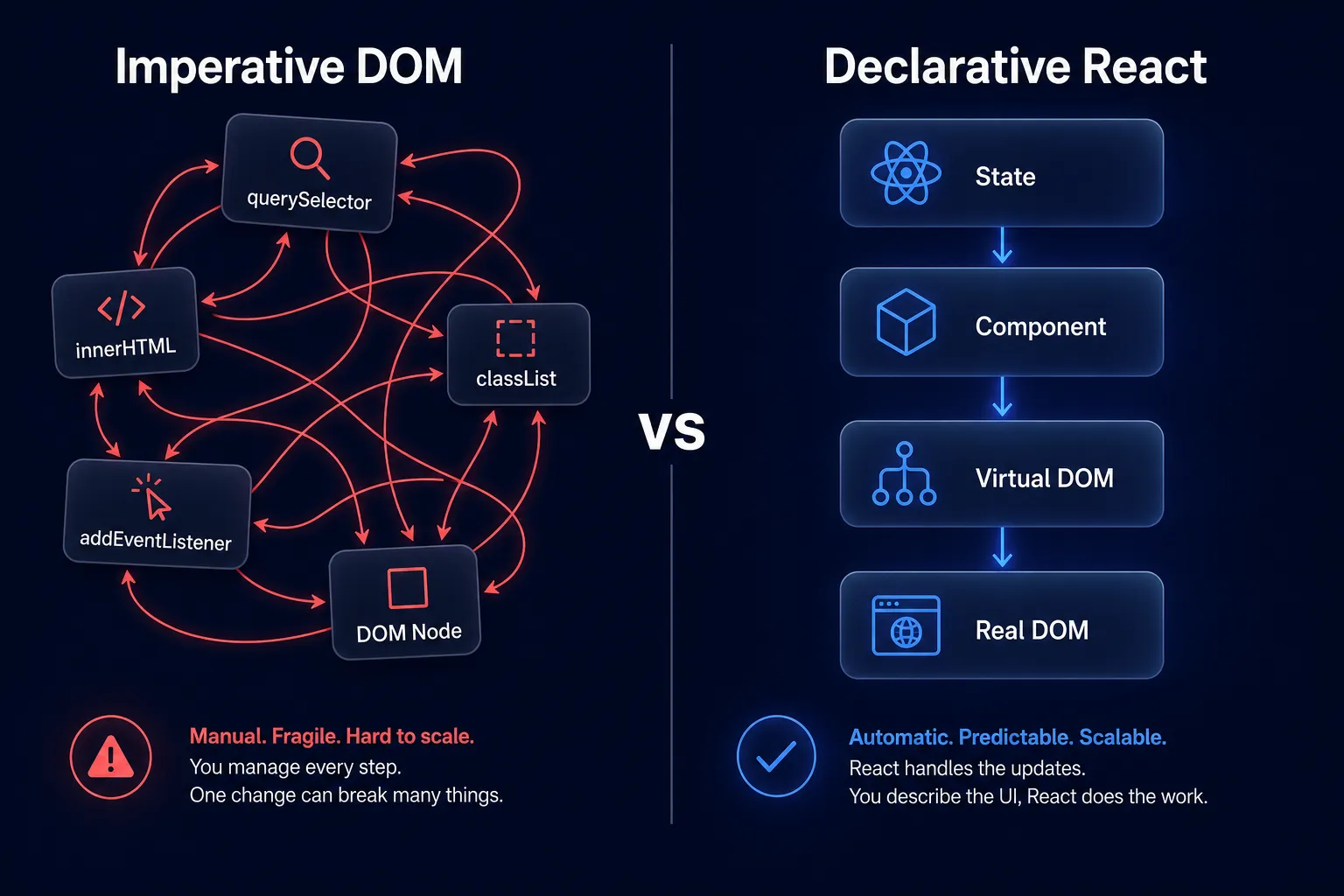
This imperative approach — telling the browser how to change the UI step by step — scales poorly. Facebook’s news feed, for example, has dozens of independent pieces of UI all responding to data changes simultaneously. The engineers needed a better model.
React’s answer was to flip the paradigm: instead of manipulating the DOM, you describe what the UI should look like at any given moment, and React figures out the minimal DOM changes needed to get there.
Understanding JSX: JavaScript That Looks Like HTML
One of the first things that surprises new React developers is JSX. It looks like HTML written inside JavaScript, which feels immediately wrong.
// This is JSX — it lives inside a .jsx or .js file
const element = (
  <div className="profile-card">
    <img src={user.avatar} alt={user.name} />
    <h2>{user.name}</h2>
    <p>{user.bio}</p>
  </div>
);
JSX is not HTML. It is syntactic sugar over React.createElement() calls. When a build tool like Babel or the modern React transform processes this file, the JSX above becomes:
// What Babel compiles JSX into (classic transform)
const element = React.createElement(
  'div',
  { className: 'profile-card' },
  React.createElement('img', { src: user.avatar, alt: user.name }),
  React.createElement('h2', null, user.name),
  React.createElement('p', null, user.bio)
);
This function call produces a plain JavaScript object — a React element — that describes a node in the UI tree. React later uses this object tree (called the virtual DOM) to determine what should appear in the browser.
Key JSX Rules to Know
- Use
classNameinstead ofclass(becauseclassis a reserved word in JS) - Self-closing tags must close:
<img />,<input />,<br /> - Every component must return a single root element (or a
<>...</>Fragment) - JavaScript expressions go inside
{}curly braces - JSX attributes that accept strings use
"quotes", dynamic values use{expression}
// Embedding JavaScript expressions in JSX
const isLoggedIn = true;
const username = 'Priya Sharma';
const notifications = 7;

const header = (
  <header className="app-header">
    <span>{isLoggedIn ? `Welcome, ${username}` : 'Please log in'}</span>
    {notifications > 0 && (
      <span className="badge">{notifications}</span>
    )}
  </header>
);
Note: JSX only accepts expressions inside
{}— not statements. You can’t write anifblock directly in JSX, but you can use ternaries or short-circuit evaluation as shown above.
Components: The Building Blocks of React UI
A component is a JavaScript function that accepts input and returns JSX describing a piece of UI. Components are the core unit of React architecture — every React application is a tree of components.
// A simple function component
function UserAvatar({ src, name, size = 48 }) {
  return (
    <img
      src={src}
      alt={`${name}'s avatar`}
      width={size}
      height={size}
      style={{ borderRadius: '50%' }}
    />
  );
}
Components are reusable. Once you define UserAvatar, you can render it anywhere:
function ProfilePage() {
  return (
    <div className="profile-page">
      <UserAvatar src="/avatars/priya.jpg" name="Priya Sharma" size={96} />
      <h1>Priya Sharma</h1>
      <p>Full-stack engineer. Loves React and chai.</p>
    </div>
  );
}

function CommentList({ comments }) {
  return (
    <ul className="comment-list">
      {comments.map(comment => (
        <li key={comment.id}>
          <UserAvatar src={comment.author.avatar} name={comment.author.name} size={32} />
          <span>{comment.text}</span>
        </li>
      ))}
    </ul>
  );
}
Notice how UserAvatar appears in both ProfilePage and CommentList. The same component handles different sizes and different data. This is component reusability in action.
Component Composition
React encourages breaking large UIs into smaller, focused components and composing them together — the same way you compose functions in functional programming.
// Breaking a product card into composed components
function ProductBadge({ label, color }) {
  return (
    <span style={{ backgroundColor: color, padding: '2px 8px', borderRadius: 4 }}>
      {label}
    </span>
  );
}

function ProductPrice({ amount, currency = 'USD', discounted }) {
  return (
    <div className="price-block">
      {discounted && <s className="original-price">${discounted}</s>}
      <strong className="current-price">
        {new Intl.NumberFormat('en-US', { style: 'currency', currency }).format(amount)}
      </strong>
    </div>
  );
}

function ProductCard({ product }) {
  return (
    <article className="product-card">
      <img src={product.image} alt={product.name} />
      <div className="product-info">
        <h2>{product.name}</h2>
        {product.isNew && <ProductBadge label="New" color="#4f46e5" />}
        <ProductPrice amount={product.price} discounted={product.originalPrice} />
        <button className="add-to-cart-btn">Add to Cart</button>
      </div>
    </article>
  );
}
Each component has one clear responsibility. This makes each piece independently testable, easier to reason about, and reusable across the application.
Props: How Components Communicate
Props (short for properties) are how a parent component passes data down to a child. They are the arguments to your component function.
// Parent passes data via props
function SocialPost({ author, content, timestamp, likeCount }) {
  return (
    <div className="social-post">
      <div className="post-header">
        <UserAvatar src={author.avatar} name={author.name} size={40} />
        <div>
          <strong>{author.name}</strong>
          <time dateTime={timestamp}>{formatRelativeTime(timestamp)}</time>
        </div>
      </div>
      <p className="post-content">{content}</p>
      <footer className="post-footer">
        <span>❤️ {likeCount} likes</span>
      </footer>
    </div>
  );
}

// Usage in a parent component
function Feed({ posts }) {
  return (
    <div className="feed">
      {posts.map(post => (
        <SocialPost
          key={post.id}
          author={post.author}
          content={post.content}
          timestamp={post.createdAt}
          likeCount={post.likes}
        />
      ))}
    </div>
  );
}
Warning: Props are read-only. A child component must never modify the props it receives. This is a core React constraint. If you need the child to change data, that data should live in state (covered next), and the parent should pass down a callback function to handle the change.
Props Enable Reusability
The same SocialPost component can render completely different posts because all its content comes from props. Change the data, and the UI reflects it automatically. This is the power of the props pattern.
State: Making Components Dynamic
Props carry data into a component, but they come from the outside. State is data that lives inside a component and can change over time in response to user interactions or other events.
The primary way to declare state in a function component is with the useState hook:
import { useState } from 'react';

function LikeButton({ initialCount }) {
  // Declare a state variable called 'count'
  // useState returns [currentValue, setterFunction]
  const [count, setCount] = useState(initialCount);
  const [isLiked, setIsLiked] = useState(false);

  function handleLike() {
    if (isLiked) {
      setCount(count - 1);
      setIsLiked(false);
    } else {
      setCount(count + 1);
      setIsLiked(true);
    }
  }

  return (
    <button
      onClick={handleLike}
      className={`like-btn ${isLiked ? 'liked' : ''}`}
      aria-pressed={isLiked}
    >
      {isLiked ? '❤️' : '🤍'} {count}
    </button>
  );
}
State is local to the component. Each LikeButton instance has its own independent count and isLiked values. Rendering ten LikeButton components gives you ten independent buttons.
State Updates Are Asynchronous
React does not update state synchronously. When you call setCount(count + 1), React schedules a re-render. If you need to compute new state based on the current state, always use the functional updater form:
// Risky: relies on potentially stale closure value
setCount(count + 1);

// Safe: React passes the guaranteed latest value
setCount(prevCount => prevCount + 1);
This matters especially when multiple state updates happen in rapid succession (e.g., a user rapidly clicking a button).
Understanding Re-rendering: How React Updates the UI
This is where React’s magic becomes mechanical — and understanding the mechanics removes the mystery.
Whenever a component’s state changes or its received props change, React schedules a re-render of that component and its children. A re-render means React calls the component function again, producing a new tree of React elements. React then compares this new tree with the previous one (a process called reconciliation or diffing) and applies only the necessary changes to the real DOM.
flowchart TD
  A[User Interaction] --> B[setState called]
  B --> C[React schedules re-render]
  C --> D[Component function runs again]
  D --> E[New Virtual DOM tree produced]
  E --> F{Diff with previous tree}
  F -->|Changed nodes| G[Update real DOM]
  F -->|Unchanged nodes| H[Skip — no DOM update]
  G --> I[Browser repaints]
Let’s see re-rendering in a concrete example:
import { useState } from 'react';

function NotificationBell() {
  const [count, setCount] = useState(0);

  console.log('NotificationBell rendered'); // Fires on every re-render

  return (
    <div className="bell-widget">
      <button onClick={() => setCount(c => c + 1)}>🔔</button>
      {count > 0 && (
        <span className="notification-badge">{count}</span>
      )}
    </div>
  );
}
Every time the button is clicked:
setCountis called with the updater function- React re-renders
NotificationBell - The new JSX is produced with the updated
count - React diffs old vs. new — only the badge span text changes
- React updates only that text node in the real DOM
The browser never re-parses the whole page. Only the specific DOM node that changed gets touched. This is efficient and automatic.
What Does NOT Cause a Re-render
- A variable declared with
letorconstinside the component changing (not state) - Props not changing (parent re-renders but passes identical props — React may still re-render the child unless you use
React.memo) - State being set to the exact same value as before (React bails out using
Object.iscomparison)
Declarative vs. Imperative: React’s Core Philosophy
| Approach | You Describe | You Manage |
|---|---|---|
| Imperative (vanilla JS) | How to update the DOM step by step | All DOM mutations, event wiring, and state synchronization manually |
| Declarative (React) | What the UI should look like for a given state | Nothing — React handles the DOM updates |
In React, your component is essentially a pure function from state/props to UI:
UI = f(state, props)You write the f. React handles the rest.
This is why React is predictable: given the same state and props, a component always produces the same output. There’s no hidden DOM state that drifts out of sync with your JavaScript variables.
Component Tree Architecture and Data Flow
Every React application has a root component (typically <App />) that contains child components, which in turn contain their own children. This forms a component tree.
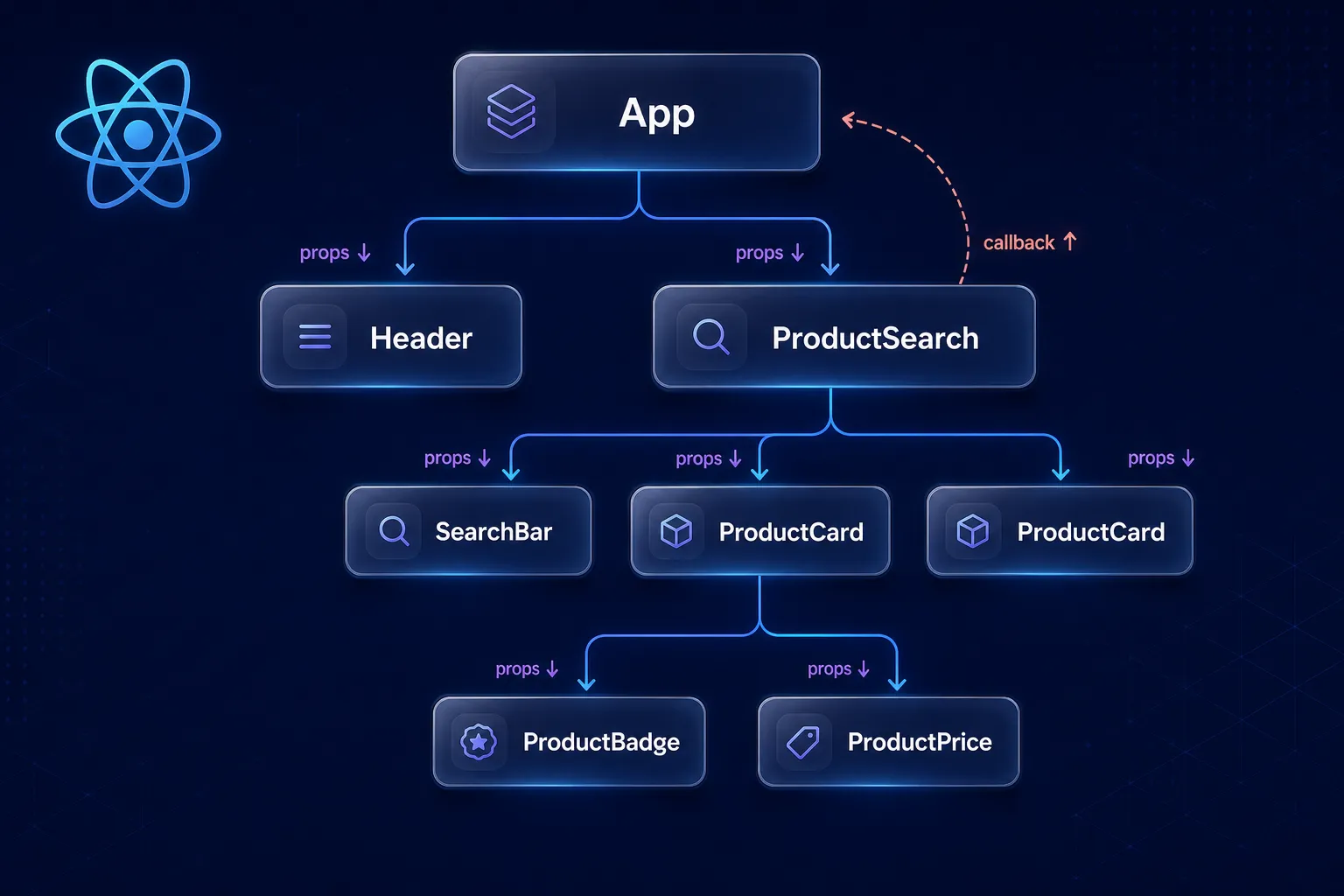
Data in React flows downward — from parent to child via props. This is called unidirectional data flow. A child cannot push data up to a parent directly. Instead, the parent passes a callback function as a prop, and the child calls it:
import { useState } from 'react';

// Child component: knows nothing about the parent's state
function SearchBar({ onSearch }) {
  const [query, setQuery] = useState('');

  function handleChange(e) {
    setQuery(e.target.value);
    onSearch(e.target.value); // Call parent's callback
  }

  return (
    <input
      type="search"
      value={query}
      onChange={handleChange}
      placeholder="Search products..."
    />
  );
}

// Parent component: owns the search results state
function ProductSearch() {
  const [results, setResults] = useState(allProducts);

  function handleSearch(query) {
    const filtered = allProducts.filter(p =>
      p.name.toLowerCase().includes(query.toLowerCase())
    );
    setResults(filtered);
  }

  return (
    <div>
      <SearchBar onSearch={handleSearch} />
      <div className="results-grid">
        {results.map(product => (
          <ProductCard key={product.id} product={product} />
        ))}
      </div>
    </div>
  );
}
The search query state lives in SearchBar, while the filtered results state lives in ProductSearch. The parent passes handleSearch down as a prop. The child calls it when the user types. The parent updates its state and re-renders its children with fresh results.
This pattern — lifting state up — is fundamental to React architecture.
Common Beginner Mistakes
1. Mutating State Directly
// ❌ WRONG: mutating state directly — React won't detect the change
const [items, setItems] = useState([]);
function addItem(newItem) {
  items.push(newItem); // This mutates the existing array
  setItems(items);     // React sees same reference, may skip re-render
}

// ✅ CORRECT: create a new array
function addItem(newItem) {
  setItems(prevItems => [...prevItems, newItem]);
}
2. Confusing Props and State
Props are input from outside. State is memory inside the component. A common mistake is using state for something that should just be a prop (or vice versa). Ask: “Does this data come from a parent, or does this component own it independently?”
3. Overusing State
Not everything needs to be state. If a value can be derived from existing state or props, compute it directly during render:
// ❌ Unnecessary derived state
const [fullName, setFullName] = useState(`\({firstName} \){lastName}`);

// ✅ Derived value — just compute it
const fullName = `\({firstName} \){lastName}`;
4. Giant Components That Do Everything
A component that renders a dashboard, fetches data, handles five forms, and manages a modal is doing too much. If your component exceeds ~100 lines of JSX, it’s a signal to decompose it into smaller, focused components.
5. Missing key Props on Lists
// ❌ No key — React can't efficiently reconcile the list
{posts.map(post => <PostCard post={post} />)}

// ✅ Stable, unique key from data
{posts.map(post => <PostCard key={post.id} post={post} />)}
Keys help React match old elements to new elements during reconciliation. Without them, you’ll see subtle bugs with list updates — especially when list items have their own local state.
Practical Example: A Complete Dashboard Widget
Let’s put it all together. Here’s a self-contained dashboard widget that demonstrates components, props, state, and re-rendering:
import { useState } from 'react';

// Atomic component: just displays a metric
function MetricTile({ label, value, unit, trend }) {
  const trendColor = trend === 'up' ? '#22c55e' : trend === 'down' ? '#ef4444' : '#94a3b8';
  const trendIcon = trend === 'up' ? '↑' : trend === 'down' ? '↓' : '–';

  return (
    <div className="metric-tile">
      <span className="metric-label">{label}</span>
      <div className="metric-value">
        <strong>{value}</strong>
        {unit && <small>{unit}</small>}
      </div>
      <span style={{ color: trendColor }}>{trendIcon}</span>
    </div>
  );
}

// Tab selector component — communicates back via onSelect callback
function TabBar({ tabs, activeTab, onSelect }) {
  return (
    <nav className="tab-bar">
      {tabs.map(tab => (
        <button
          key={tab.id}
          className={`tab-btn ${activeTab === tab.id ? 'active' : ''}`}
          onClick={() => onSelect(tab.id)}
        >
          {tab.label}
        </button>
      ))}
    </nav>
  );
}

// Main dashboard widget — owns the active tab state
const TABS = [
  { id: 'today', label: 'Today' },
  { id: 'week', label: 'This Week' },
  { id: 'month', label: 'This Month' },
];

const METRICS = {
  today: [
    { label: 'Revenue', value: '$4,210', unit: null, trend: 'up' },
    { label: 'Orders', value: 38, unit: null, trend: 'up' },
    { label: 'Avg. Order', value: '$110', unit: null, trend: 'down' },
    { label: 'Return Rate', value: 2.4, unit: '%', trend: 'down' },
  ],
  week: [
    { label: 'Revenue', value: '$28,540', unit: null, trend: 'up' },
    { label: 'Orders', value: 241, unit: null, trend: 'up' },
    { label: 'Avg. Order', value: '$118', unit: null, trend: 'up' },
    { label: 'Return Rate', value: 1.9, unit: '%', trend: 'up' },
  ],
  month: [
    { label: 'Revenue', value: '$112,800', unit: null, trend: 'up' },
    { label: 'Orders', value: 987, unit: null, trend: 'up' },
    { label: 'Avg. Order', value: '$114', unit: null, trend: 'down' },
    { label: 'Return Rate', value: 2.1, unit: '%', trend: 'down' },
  ],
};

export function SalesDashboard() {
  const [activeTab, setActiveTab] = useState('today');

  const currentMetrics = METRICS[activeTab];

  return (
    <section className="sales-dashboard">
      <h2>Sales Overview</h2>
      <TabBar
        tabs={TABS}
        activeTab={activeTab}
        onSelect={setActiveTab}  // Pass state setter as callback
      />
      <div className="metrics-grid">
        {currentMetrics.map(metric => (
          <MetricTile
            key={metric.label}
            label={metric.label}
            value={metric.value}
            unit={metric.unit}
            trend={metric.trend}
          />
        ))}
      </div>
    </section>
  );
}
When the user clicks a tab:
TabBarcallsonSelect(tab.id)— which is actuallysetActiveTabSalesDashboard’sactiveTabstate updates- React re-renders
SalesDashboard currentMetricsis recomputed from the new tab valueTabBargets newactiveTabprop and highlights the correct tab- The four
MetricTilecomponents get new data and display updated numbers
No direct DOM manipulation. No querySelector. Just state → UI.
Trade-offs and Pitfalls
| Situation | React Approach | Potential Pitfall |
|---|---|---|
| Simple static page | Might be overkill | Bundle size overhead for no benefit |
| Frequent state updates | Efficient via batching | Stale closures if updater form is skipped |
| Deep component trees | State lifting works | Prop drilling becomes painful (use Context later) |
| Large lists | Efficient with keys | Missing or unstable keys cause re-render bugs |
| Expensive computations | Works fine at small scale | Needs useMemo at larger scale |
| Side effects (API calls) | Not covered here | Requires useEffect (next article) |
Warning: Don’t try to learn
useEffect,useContext,useReducer, anduseMemoall at once. Master the fundamentals in this article first. Every advanced hook builds on components, props, and state.
Best Practices

1. One component, one responsibility. If you’re struggling to name a component, it’s probably doing too much. UserProfileCard is clear. UserProfileCardWithModalAndDataFetch is a red flag.
2. Keep state as local as possible. State should live in the lowest common ancestor that needs it. Don’t lift state higher than necessary.
3. Derive values, don’t sync state. If a value can be computed from existing state or props during render, compute it. Don’t store it in separate state that you update manually.
4. Use descriptive prop names. Avoid data, info, obj as prop names. Prefer product, currentUser, selectedDate.
5. Stable, unique keys on lists. Always use a stable, unique identifier from your data (like a database ID), never the array index (unless the list is static and never reordered).
6. Name components with capital letters. <userCard /> is treated as a DOM element. <UserCard /> is treated as a component. Always capitalize.
7. Collocate related components. A ProductCard and its sub-components (ProductBadge, ProductPrice) belong in the same file or folder until they need to be shared elsewhere.
Conclusion
React exists because complex UIs become unmanageable with imperative DOM manipulation. Its answer is a declarative, component-driven model:
- JSX lets you describe UI as a function of data, compiled to plain JavaScript
- Components are reusable, composable UI units with a single responsibility
- Props carry data downward from parent to child, read-only
- State is internal memory that drives re-renders when it changes
- Re-rendering is automatic, efficient, and based on pure function semantics
The mental model is this: your UI is a snapshot that React keeps in sync with your state. You update state. React updates the screen.
Your next step: build something with just these primitives. A todo list. A filterable product grid. A tabbed dashboard. Don’t reach for useEffect or a state management library yet. The discipline of working within these constraints will make you dramatically better at React architecture.
Further Reading
- React Official Documentation — Describing the UI — The canonical source. The new react.dev docs are exceptional.
- React Official Documentation — Adding Interactivity — Covers state and event handling in depth.
- Thinking in React — A short, essential guide on how to approach breaking a UI into components.
- JavaScript.info — The Modern JavaScript Tutorial — If any JS fundamentals felt shaky, this is the best free resource to fill gaps.
- Babel REPL — Paste JSX and see the compiled
React.createElementoutput in real time. Excellent for building intuition.